
ADOBE EXPRESS
Express gives you a couple of blend modes – and that's about it. But blending two images into one composition – masked, layered, moving – needs the whole palette and the tools to shape where they meet. Mix Maestro brings all of it into Express: sixteen blend modes previewed on your own photos, four ways to mask, cut-outs, double exposure, and two-pose animation. No AI, no uploads, nothing leaves your browser.
Live preview
PREVIEW

Drop in two images and every blend mode shows up as a live thumbnail of your photos – not a menu of names, an actual preview of the result. Pick the one you can already see working. Then shape exactly where the two meet.
Key features
Pull it straight off your page
Import a base or blend image however suits the job: upload, drop one in, use your whole page, or – the one no other blend tool does – capture a single object you've selected on the canvas. Pick a logo, a shape, a photo among others, and Mix Maestro lifts just that region, sharp and exactly bounded. What's selected is what you get.
Sixteen blend modes, shown on your own images
Darken, Multiply, Screen, Overlay, Soft light, Difference, Hue, Luminosity and the rest – each previewed on the two photos you're actually working with, so picking a mode is choosing a result you can already see. Set the blend image's opacity to dial the whole effect up or down.
Four ways to mask
Control exactly where the two images meet. Reach for a ready-made mask – fades, vignettes, splits, a soft center band, a wave – or build one in the pattern generator (dots, diamonds, triangles, lines, dashes, riding a linear, radial, or wave gradient, with density, softness, scatter, and organic noise). Or paint it by hand on the preview with a soft-to-hard airbrush or splatter brush – paint to conceal, erase to reveal. Every mask inverts, repositions, and aims at the blend, the base, or both.
Cut-outs and double exposure
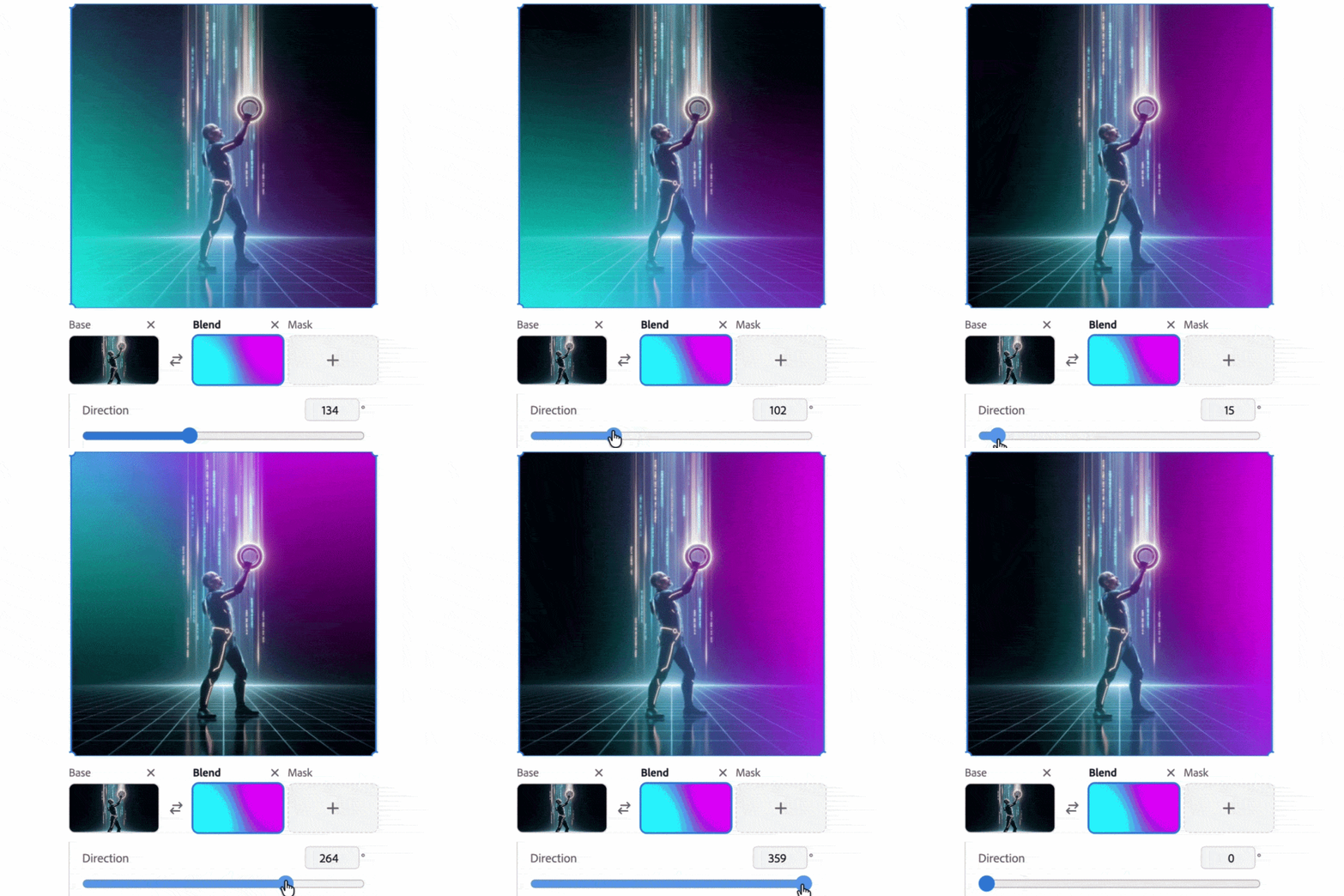
Combine the two images as shapes: keep the blend only where they overlap, subtract one from the other, or knock a hole through both. Or reach for the double-exposure gradient – the fashion-portrait look – fading one image into the other across a direction and softness you set.
Fit any frame
Set the composition to any ratio – 9:16 for stories, 1:1 for posts, 16:9 wide, or match either image – and Mix Maestro crops to fit without ever inventing pixels, showing the exact export size as you go.
Make it move
Capture a start look and an end look and Mix Maestro tweens between them. Because the mask is part of the look, this is where wipes come from: sweep a gradient, slide a pattern, or crossfade one painted mask into another, and the transition writes itself. Export MP4 or GIF, with a size estimate from your real frames.
Save your masks to reuse
Add any mask to your page as its own black-and-white image – drop it into any design, or bring it back into Mix Maestro later. Your custom gradients and paintings become a library you own.
TUTORIAL